How to Add an AI Chatbot to Your LinkedIn Profile in 2026
LinkedIn doesn't allow embedded widgets, but you can still put an AI chatbot one click from your profile. The 5-step setup, free, in about 15 minutes.
You cannot embed a chatbot directly inside LinkedIn - profiles accept no widgets or scripts. What you can do is put a chatbot one click away: host it on a page you control, then link that page from your Featured section and contact info. Visitors click, ask questions, and you capture what they asked. The whole setup takes about 15 minutes and works on a free LinkedIn account. Here is the five-step version.
Why put a chatbot behind your LinkedIn profile at all
Your profile gets visited by almost every prospect you touch - before they accept a connection request, after a cold email, before a first call. Most of those visits end silently: the prospect scrolls, forms a first impression, and leaves. You never learn they were there or what they wanted to know.
A chatbot turns that silent visit into a conversation. A prospect who would never book a meeting from a cold profile visit will happily ask an anonymous question about pricing, integrations, or fit. Those questions are first-party buyer intent - the signal sales teams normally pay intent data vendors to approximate from third-party scraping.
This behavior is measurable. Gartner's 2026 sales survey found that 67% of B2B buyers prefer a rep-free experience for at least part of their purchase, and buyers spend only about 17% of their buying journey actually meeting with potential suppliers - the rest is the independent research a profile visit belongs to. The same research shows the ceiling: 69% of buyers still turn to a human rep to validate what AI tells them. A profile chatbot serves both halves of that - it handles the anonymous homework phase, and your first call handles the validation.
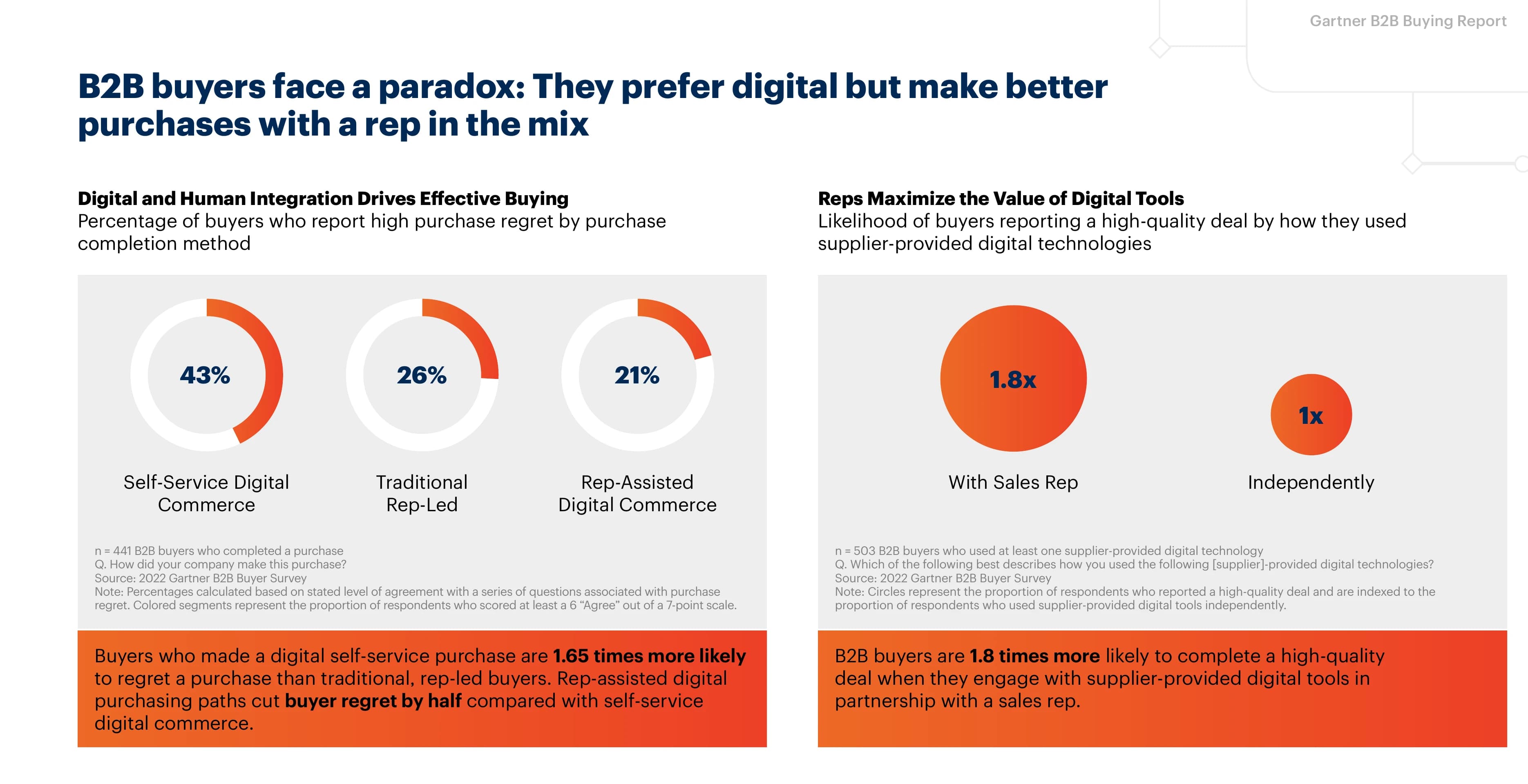
Sources: Gartner, 2026; Gartner, 2026; Gartner B2B buying journey research.
The catch is placement. LinkedIn removed most free profile links in 2024-2025, so the chatbot has to live on an external page that your remaining link placements point to. That is what the steps below set up.
Step 1: Create the chatbot on a page you control
You need a public page that opens straight into a chat window. Building one from scratch means wiring a chat UI to an LLM API and hosting it; the faster route is a hosted profile that ships with the chatbot built in.
Parsley is built for exactly this: an AI presales agent that lives at your profile link. You claim a URL, and the page opens as a Gemini-powered chat trained on your documents. If you are weighing the alternatives - Custom GPTs, Delphi, Chatbase, and the rest - the full chatbot comparison ranks them for this job. Whichever tool you use, check it meets three requirements:
- The chat is the page, not a widget in the corner of a brochure. A profile visitor clicking out of LinkedIn has one question in mind - land them in the conversation.
- It answers from your documents, not from generic AI knowledge. A chatbot that improvises answers about your pricing is worse than no chatbot.
- It tells you what was asked. The questions are the point - if the transcript disappears, you have lost the intent signal that justifies the setup.
Step 2: Train it on your sales documents
Upload the material a good SDR would use to answer a first-call question: pricing one-pagers, FAQ docs, case studies, integration lists, competitor comparisons. Skip the brand deck - visitors ask "how much is it" and "does it work with HubSpot", not "what is your mission".
The same goes for technical documentation. If your buyers bring an engineer to the evaluation, upload the API reference, integration guides, MCP server docs, and security or data-handling notes. A prospect's developer asking "does the API support webhooks" at 11pm gets an instant, accurate answer instead of a follow-up call - and the question itself tells you a technical evaluation is underway. In effect the agent covers the sales engineer's first shift: it fields the technical qualifiers so a human only joins for the deep dive.
Then test it like a skeptical prospect. Ask the awkward questions - "how are you different from [competitor]", "what happens to my data", "is there a free plan" - and fix gaps by uploading better documents, not by hoping visitors won't ask.
Step 3: Add the link to your Featured section
The Featured section is the highest-visibility free link placement left on a LinkedIn profile. LinkedIn builds the preview card from your page's Open Graph tags, so a chatbot page that previews as a live chat window - photo, welcome message, suggested questions - does the selling before the click.
The mechanics: Add profile section → Recommended → Add featured → Add a link, then drag the card to the first position. The full placement guide, including why the Featured section beats every other option and how to fix a stale preview card, is in our LinkedIn Featured section walkthrough.
Here is the whole flow on a real profile - the Featured-section card, and the conversation a prospect gets when they click:
Want to try the card before you build one? Our interactive LinkedIn Featured section tool lets you chat with a live card and copy the exact title and description to paste into LinkedIn.
Put an AI chatbot behind your LinkedIn profile
Your Parsley link previews as a chat card in the Featured section. Free to start, 10 free conversations, live in minutes.
Get started freeStep 4: Cover the other placements
The Featured section catches profile visitors, but the same link works everywhere a prospect meets you:
- Contact info - LinkedIn still gives every account up to three website slots one click behind the profile header.
- DMs and InMails - the link unfurls into the same preview card. One caution: avoid links in a first-touch message to a stranger, since LinkedIn is known to suppress those. Let the profile carry the link passively instead.
- Email signature and follow-ups - the placement prospects revisit when they are comparing options after the call.
One page, one link, every channel. That consistency also means every conversation lands in the same inbox regardless of where the prospect found you.
Step 5: Read the signals and route them to your CRM
The chatbot's output is not "leads" in the form-fill sense - it is conversations. This is one of four ways to capture buyer intent from your profile visitors, and the richest of them. What to watch:
- What was asked. Pricing and timeline questions signal an active evaluation; feature questions signal early research. Parsley classifies this automatically as Hot, Warm or Cold buyer intent.
- Who asked. Some visitors identify themselves in conversation or leave an email for a follow-up. Capture rate will be a minority of conversations - the anonymous majority is still telling you what your market wants to know.
- Where it goes. Sync conversations to your CRM (Attio, HubSpot, Folk and others) so the intent arrives where your pipeline lives, not in another dashboard you have to remember to check.
Common pitfalls
- Linking to a homepage with a chat widget. The visitor came to ask a question; make the conversation the landing experience, not a pop-up they must find.
- Training on marketing copy only. Upload the docs that answer buying questions. If the bot cannot answer "what does it cost", it fails the most common question first.
- Letting the preview card go stale. LinkedIn caches link previews. After changing your page, run the URL through the LinkedIn Post Inspector and re-add the Featured item.
- Treating it as a lead form. Interrogating visitors for an email before answering kills the conversation. Answer first; the intent signal is valuable even when the visitor stays anonymous.
Frequently Asked Questions
Is linking to a chatbot allowed under LinkedIn's terms?
Yes. You are adding an ordinary link to your own website, which the Featured section and contact info exist for. What LinkedIn does not allow is embedding scripts or widgets inside the profile itself - which is why the link-out approach is the working method.
Are there AI chatbots built into LinkedIn already?
Yes, but they do a different job. LinkedIn's own AI features help you write your profile - headline and About suggestions - and its help assistant answers questions about using LinkedIn itself. Neither one talks to your visitors. Adding an AI chatbot to your profile in the sense this guide covers means linking out to your own agent, trained on your documents, that answers prospects' questions about your product.
What is the difference between this and an AI SDR?
An AI SDR sends outbound messages on your behalf; a profile chatbot answers the prospects your outbound brings in. They sit on opposite sides of the same motion - the full comparison is in AI Chatbot vs AI SDR.
Will prospects actually talk to a chatbot?
The ones doing homework will. A profile visitor mid-evaluation wants an answer without the social cost of a sales conversation - anonymous questions are a lower-friction ask than a demo form or a meeting link. The visitors who don't engage cost you nothing; the profile link just sits there.
What does it cost to run?
A Parsley profile is free to create and includes 10 free conversations; after that, conversations cost about 25 cents each in credit packs, with no subscription. Building your own instead means paying LLM API usage plus hosting.
Do I need LinkedIn Premium?
No. The Featured section and contact-info website slots are free for every account. Only the "Visit my website" profile button requires a Premium Business or Sales Navigator plan.
Every prospect you touch this quarter will look at your LinkedIn profile at least once. Create a free Parsley profile, upload your sales docs, and that visit becomes a conversation - answered instantly, scored for intent, and synced to your CRM.