Add Parsley to LinkedIn
Put your Parsley link on your LinkedIn profile and in messages so prospects can start a conversation: Featured section, profile button, contact info, and DMs.
Your Parsley link works hardest on LinkedIn, where buyers already research the people they are thinking of buying from. Put it on your profile and it greets every visitor with your presales agent, day or night, capturing intent from people who would never have filled in a form. Here is where to place it, in order of impact.
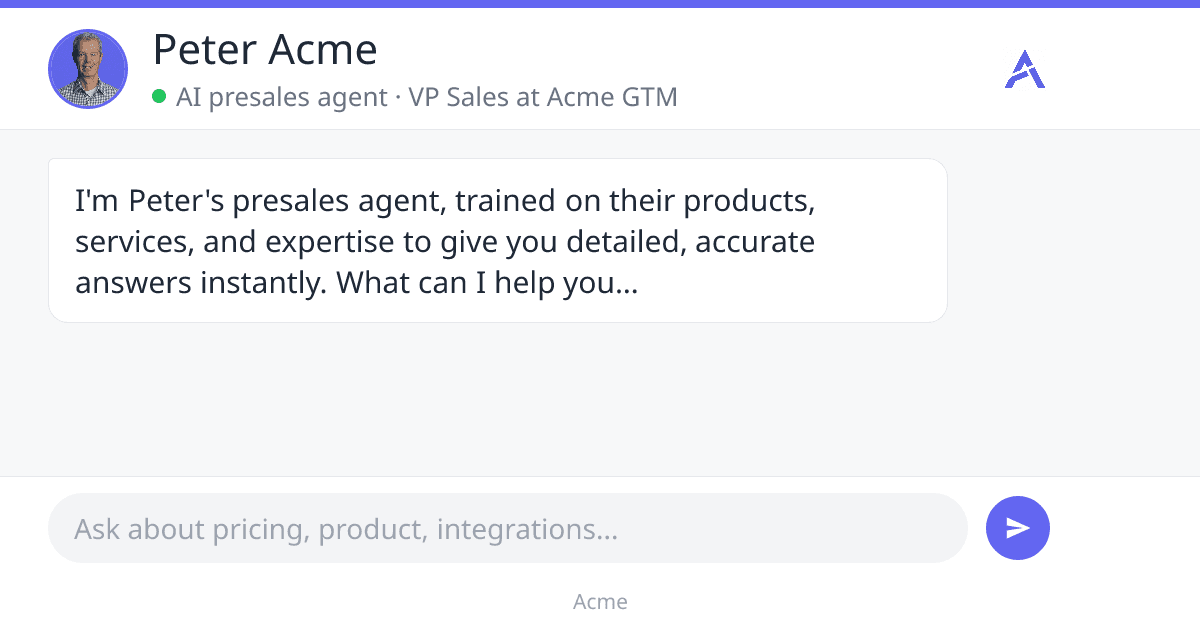
Your link becomes a chat card
When you paste your Parsley link into LinkedIn, it does not show a plain web link. LinkedIn pulls in a preview that renders as a chat window: your photo, your title, your agent's opening message, and the questions a prospect can ask. That card is why placement matters. Wherever it appears, it looks like a conversation waiting to happen, not a document to read.
Featured section (start here)
The Featured section is the most visible free placement on your profile, and where most prospects will see your card. Add your link there and it sits near the top of your profile as a large, clickable tile.
- On LinkedIn, open your profile and click "Add profile section".
- Choose "Recommended", then "Add featured".
- Click the plus, choose "Add a link", and paste your Parsley link. LinkedIn pulls in your chat card automatically.
- Click the card, then "Edit", and replace LinkedIn's auto-filled title and description with copy that gives prospects a reason to click.
- If you have other featured items, drag the card to the first position.
The Add to LinkedIn page in your dashboard gives you a title and description ready to paste, and shows a live preview of the card before you publish.
The profile button (Premium and Sales Navigator)
If you have LinkedIn Premium Business, Sales Navigator, or Recruiter Lite, the "Visit my website" button in your profile intro is even more prominent than the Featured section. It follows you onto your posts, into search results, and into messages. Since May 2025, LinkedIn offers this button only on those paid plans. Edit the custom button in your intro, choose a label like "Visit my website", and paste your Parsley link as the URL.
Contact info (every account)
Every LinkedIn account has three website slots in your Contact info. They are one click deep rather than on the surface, but they are always there and free. Open "Contact info", edit it, add a website, paste your link, and set the type to "Other" with a short label such as "Ask my AI anything".
DMs and InMail
Paste your link into a message and LinkedIn renders the same chat card below it. This is your most direct route to a prospect, and it works best mid-conversation: after a reply, in a follow-up, or in a recap. Avoid dropping a link in the very first message to someone you have never interacted with, since LinkedIn can suppress first-touch links, and keep links out of connection-request notes, which are plain text.
Refresh the preview after a change
LinkedIn caches your card for up to a week. If you update your photo, title, or your agent's greeting and the old card still shows, paste your link into the LinkedIn Post Inspector to force a refresh, then remove and re-add the Featured item to pull in the new card.
Your link is now in the places prospects will find it. Before you push it out widely, run a few conversations yourself to make sure the agent answers well. That is the next step.